Moving Scenarios
If you have made groups in your scenarios view you should have the ability to move the scenarios in and out of those groups.
These steps will only apply if you have group tiles in your scenarios view, if not please check out creating scenario groups above.
Steps
- Go to scenario view
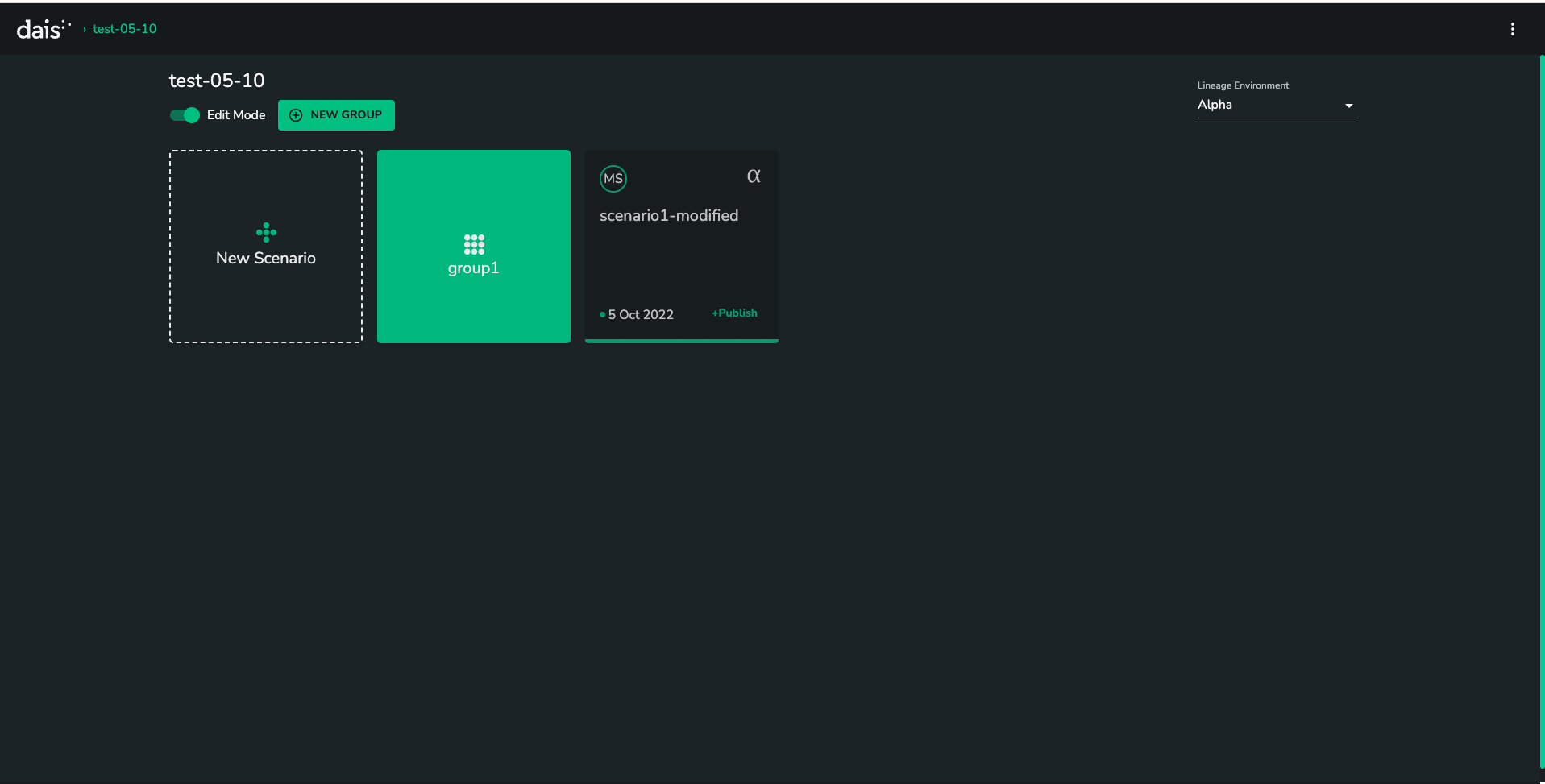
- Click on the
EDITbutton above the scenario tiles
You should now have a SAVE and NEW GROUP button.
- Click and drag a
scenariotile onto yourgrouptile.
The group tile should show Add, you can now drop your scenario tile to move it to the group.

- Click
SAVEto confirm all edits/moves made.
Move a scenario out of a group
- Navigate to your scenario group by clicking on your
grouptile. - Click the
EDITbutton as described above in step - Drag the scenario onto the
Uptile.

The Up tile should change to a Move tile. You can now drop your tile to move it up a group level.

- Click
SAVEto confirm all edits/moves made.
Troubleshooting
Q: I can't click or drag my scenario tile
A: It is likely you are not in edit mode. Click the EDIT button as described in step 2.
Q: I don't see the Up tile
A: It is likely you are not within a scenario group. Click on your group tile out of edit mode to navigate to that group. If you are not sure what a group tile is or how to make one, check out Making scenario groups above.